
Facebook Page app
Set up a Meta app with Facebook Login so Bulkit can post to Facebook Pages.
Bulkit posts to Facebook Pages, not personal profiles. The person who connects must be an admin of the Page.
You can reuse the Meta app you made for Instagram.
Create or open a Meta app
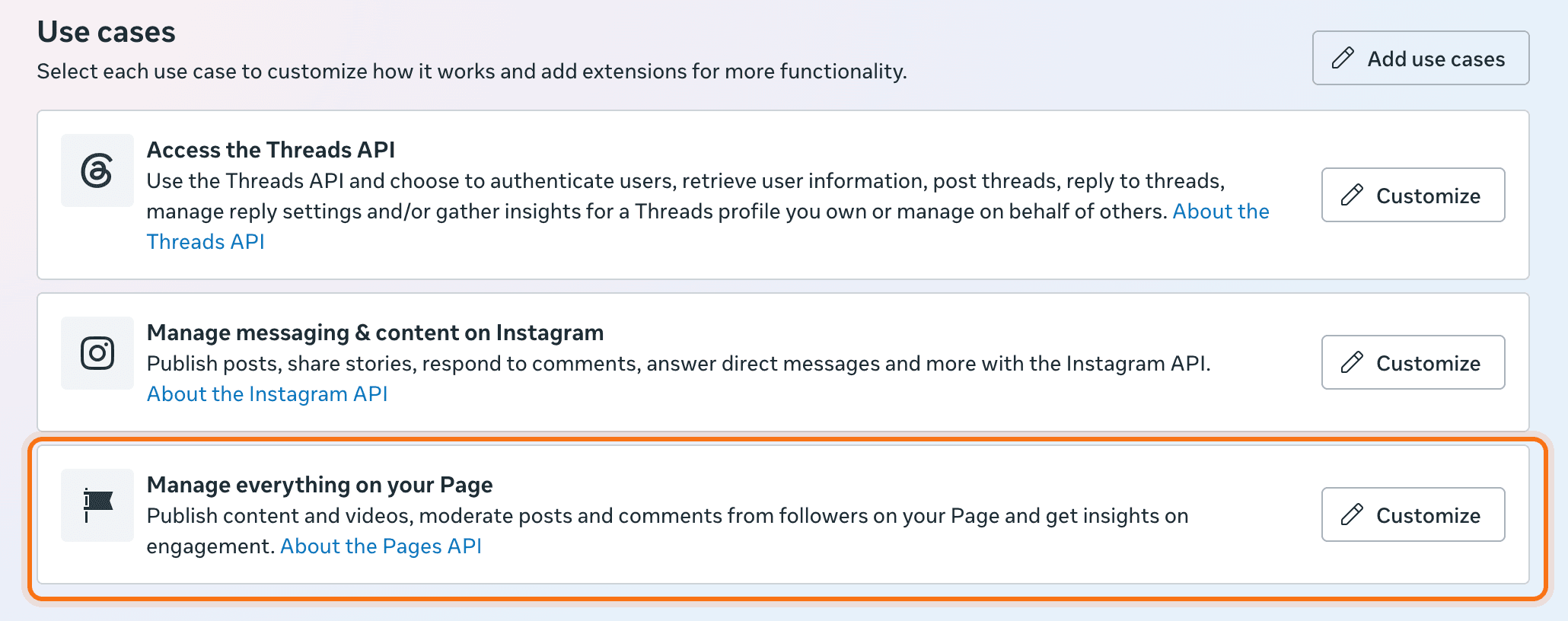
Go to developers.facebook.com/apps. To make a new one, click Create app and pick the use case Manage everything on your Page. To reuse your Instagram app, open it and add that use case.
Add the permissions
Open Use cases, click Customize on the Page use case, and under Permissions and features add:
pages_show_listpages_manage_postspages_read_engagementpages_manage_engagementpages_read_user_content(Facebook requires it alongsidepages_manage_engagement)business_management(needed when your Page belongs to a Business portfolio)read_insights(optional, for analytics)
Add the redirect URI
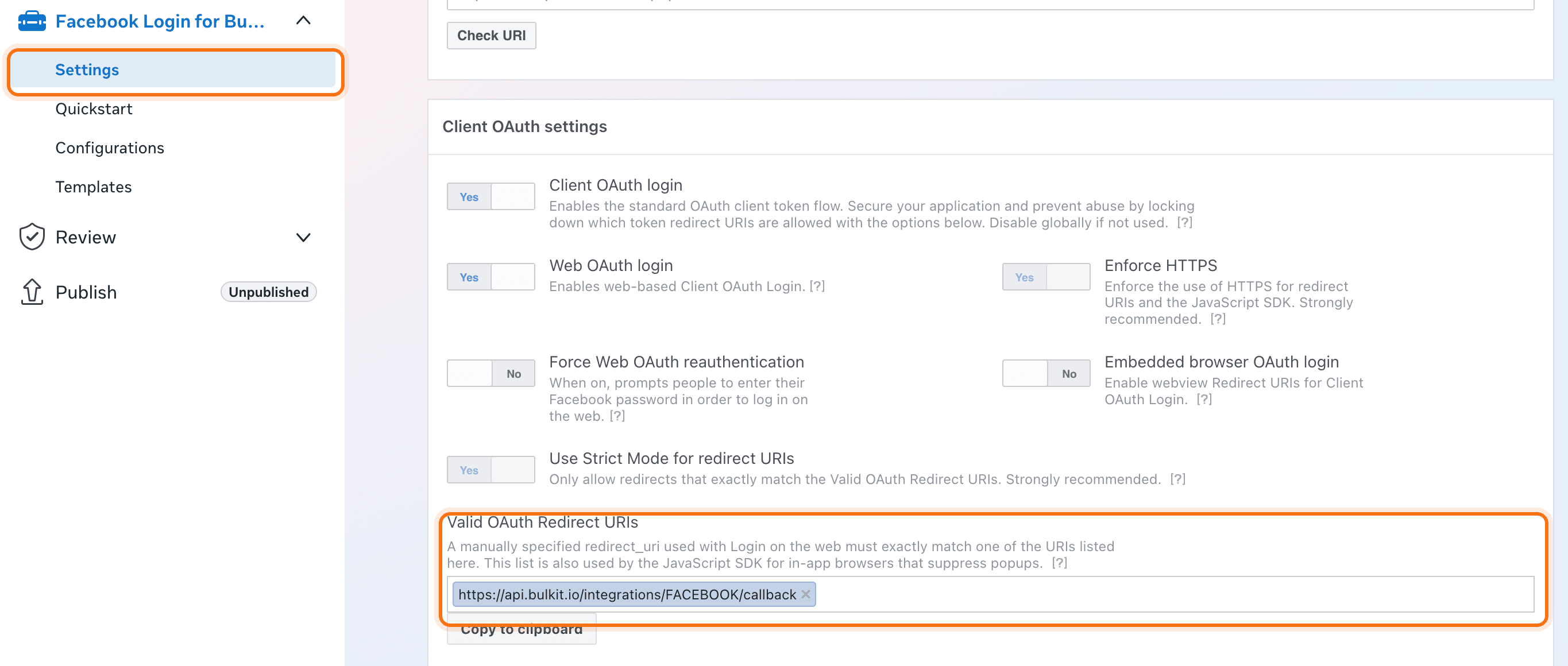
In the left menu, open Facebook Login for Business → Settings. Under
Valid OAuth Redirect URIs, paste the redirect URI from Bulkit (like
https://api.bulkit.io/integrations/FACEBOOK/callback), press Enter, then
click Save Changes.
Copy the keys into Bulkit
Open App settings → Basic and copy the App ID and App secret. Paste them into Channels → Platform apps → Facebook Page in Bulkit.

Connect a Page
In Bulkit, open Channels → Accounts → Connect account → Facebook Page. Log in, pick the Pages to share, and leave every permission switched on.
Before review
Until Meta approves the app, you can only connect Pages run by people who have a role on the app (admin, developer or tester). Add people under App roles → Roles.
To open it to everyone:
- Complete business verification (App settings → Basic, or the Verification tab).
- Submit App Review for Advanced Access to every permission above
(the
pages_ones,business_management, andread_insightsif you added it). - Switch the app to Live.
Common problems
"That account doesn't administer any pages." The account you logged in with
isn't an admin of any Page, or you unticked the Pages in the Facebook dialog.
Ask a Page admin to give it the admin role, then connect again. If the Page
belongs to a Business portfolio, also check that business_management is added
to your app's Page use case: without it Facebook hides the Page from Bulkit.
"Invalid Scopes: pages_read_user_content." Your app's Page use case is missing that permission. Add it under Use cases → Customize, then connect again.