
Pinterest app
Create a Pinterest app and get Standard access so Bulkit can publish Pins.
Trial access can't publish
New apps start with Trial access. A Trial app connects and schedules fine, then every Pin fails to publish. Request Standard access before you rely on it.
You need a Pinterest business account to create an app.
Create the app
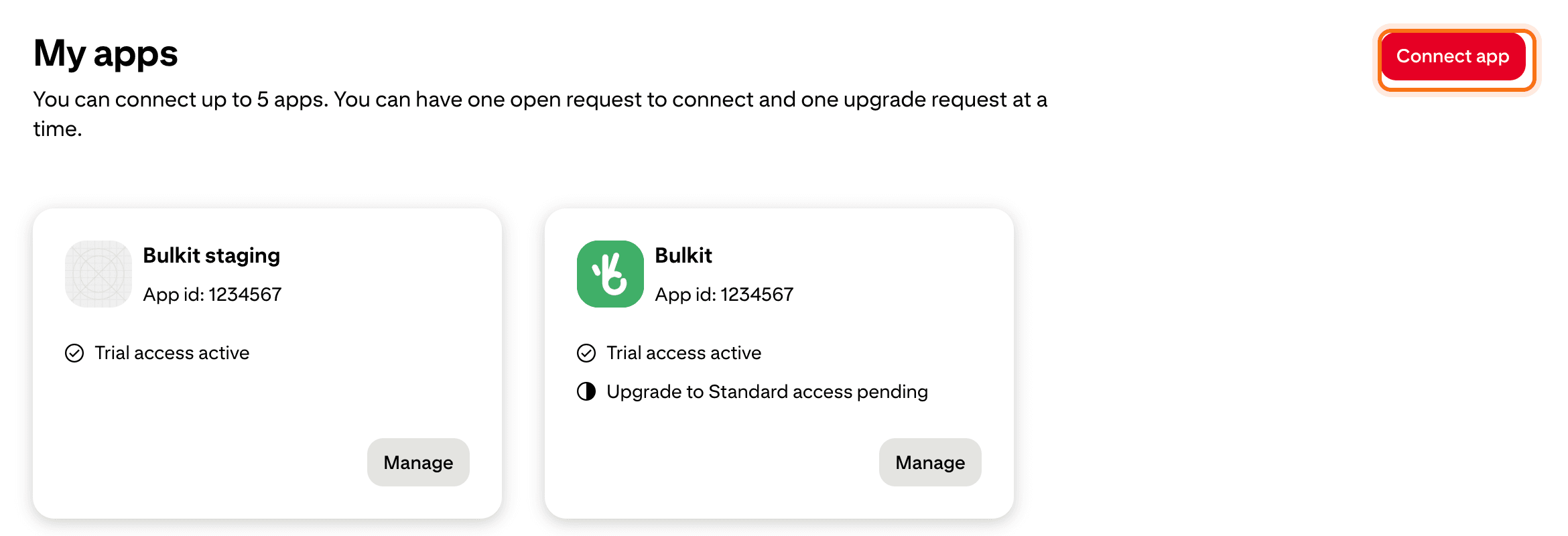
Go to developers.pinterest.com/apps and click Connect app. Fill in the name, description and your website.
Add the redirect URI
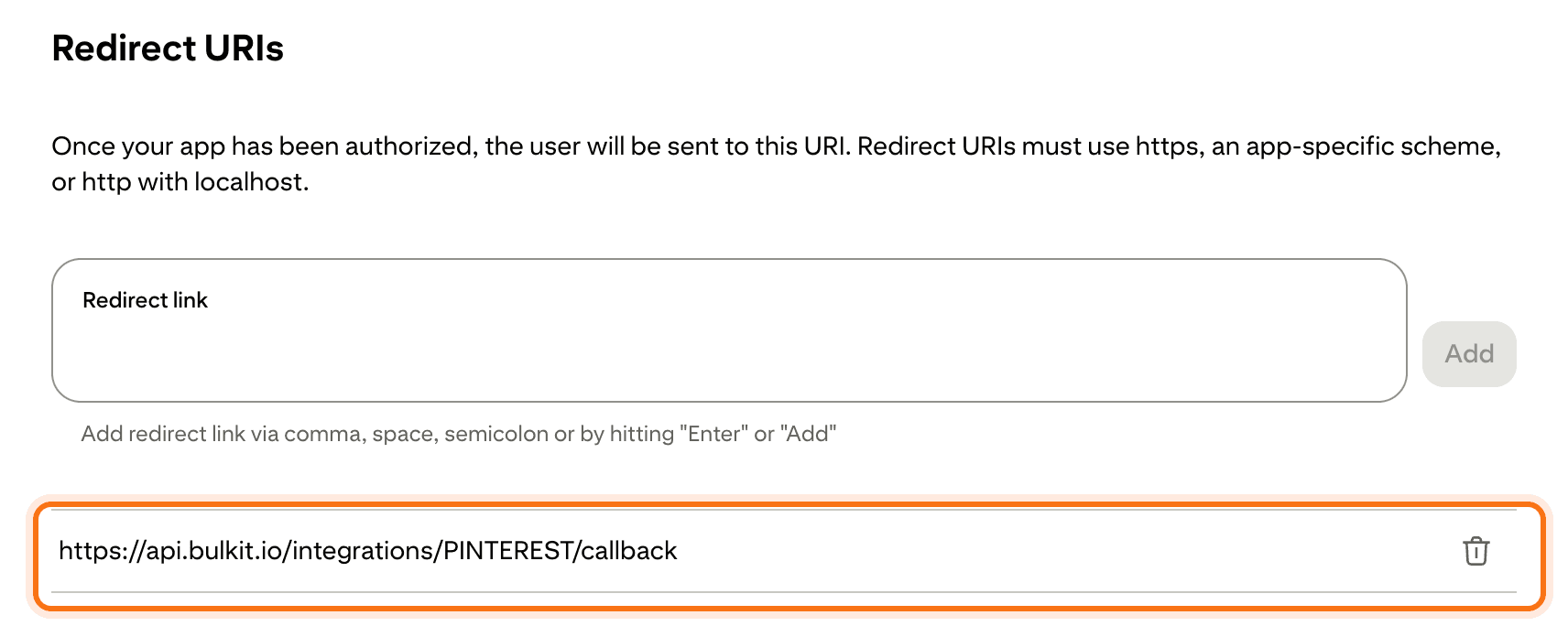
Open the app and, under Redirect URIs, add the redirect URI from Bulkit
(like https://api.bulkit.io/integrations/PINTEREST/callback). Pinterest
matches it exactly.
Copy the keys into Bulkit
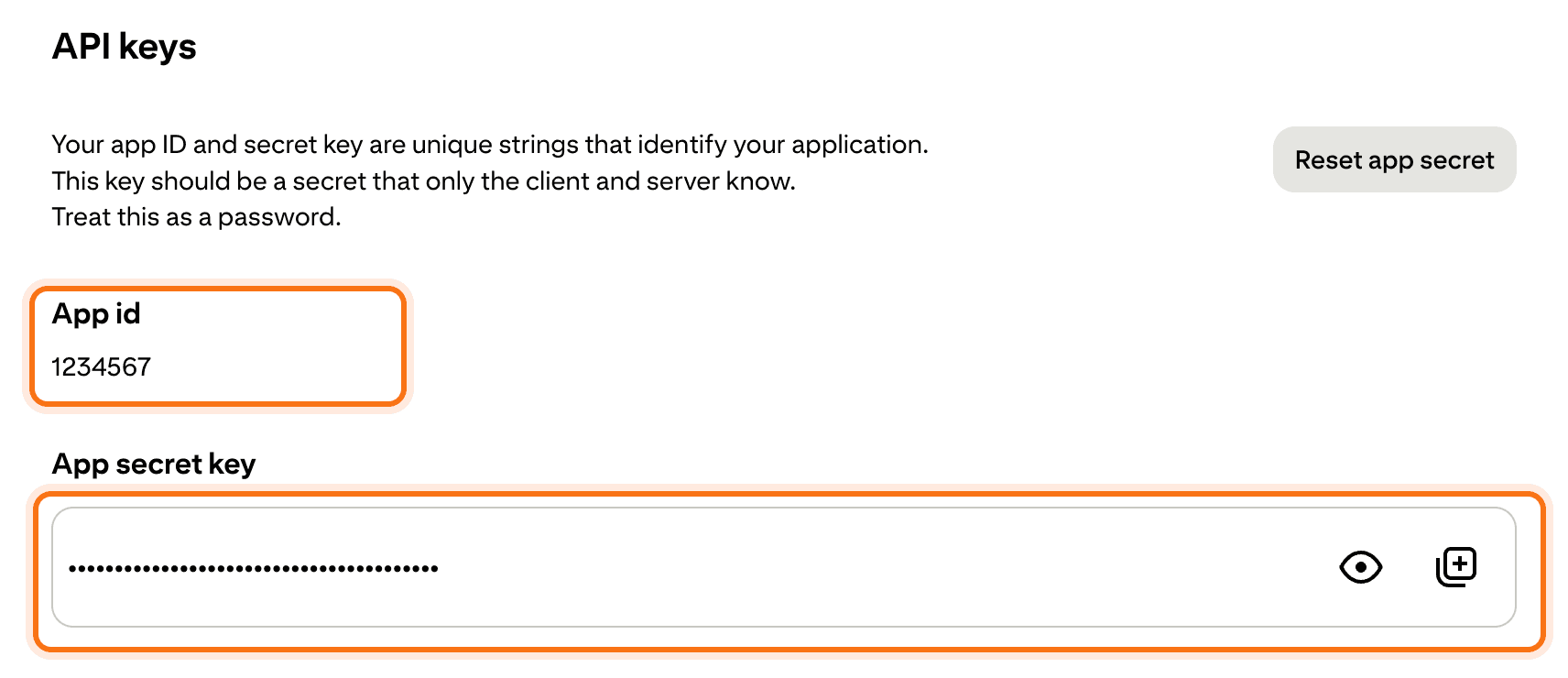
Under API keys, copy the App id and the App secret key (click the eye icon to show it). Paste them into Channels → Platform apps → Pinterest in Bulkit.
Request Standard access
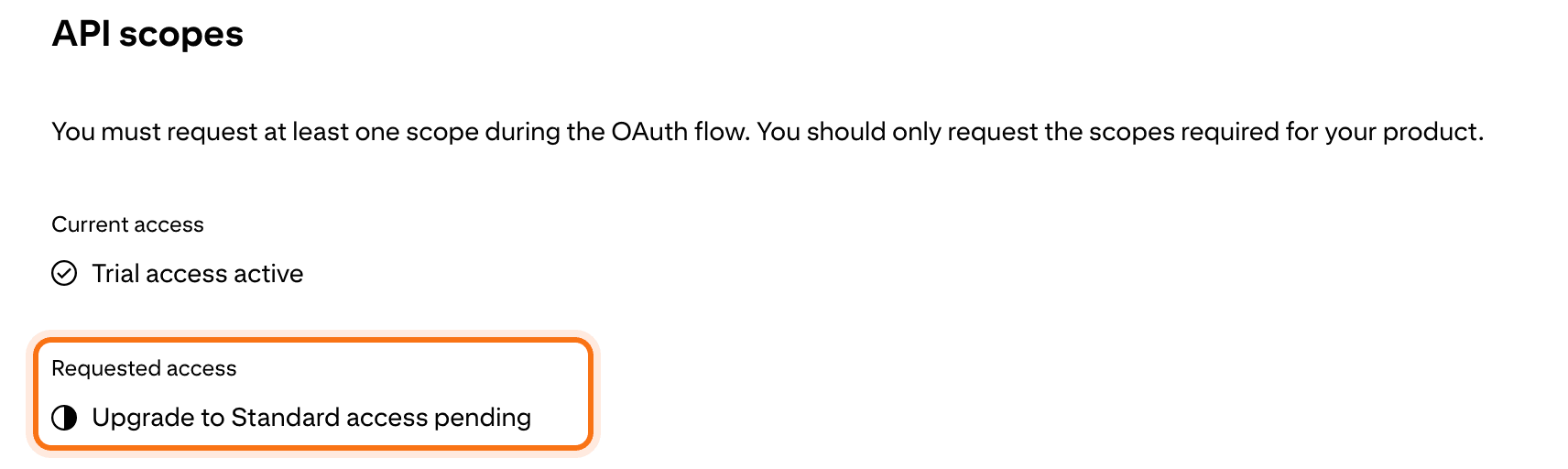
On the app's page, request an upgrade to Standard access. Under API scopes, the request then shows as pending. Pinterest asks for a short demo video of your app in use.
Connect an account
In Bulkit, open Channels → Accounts → Connect account → Pinterest.
Good to know
- The login renews on its own while the account is in use. If nothing is posted for 60 days, it expires and needs a reconnect.
- Pin analytics need a Pinterest business account.