
Threads app
Add the Threads API use case to a Meta app so Bulkit can post to Threads.
You can reuse the Meta app you made for Instagram or Facebook. Threads still has its own keys.
Add the Threads use case
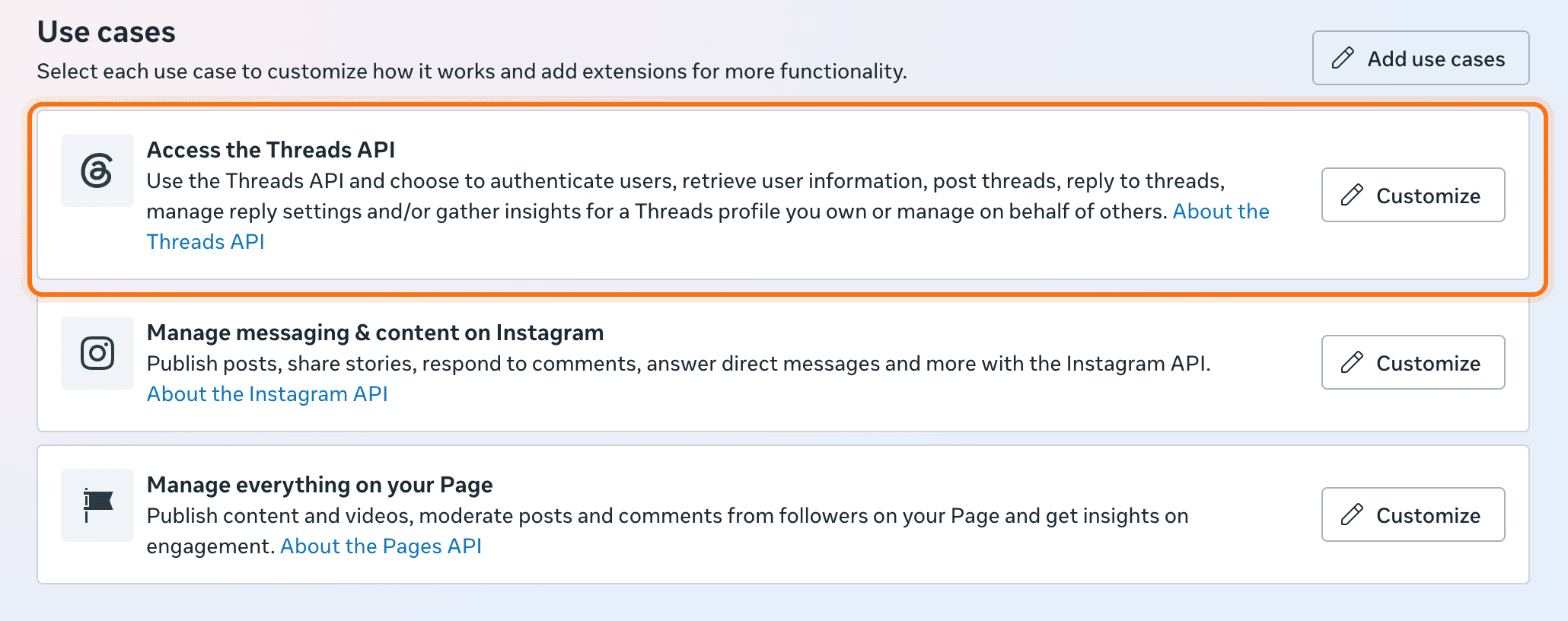
Go to developers.facebook.com/apps. Create an app, or open yours, and add the use case Access the Threads API.
Add the permissions
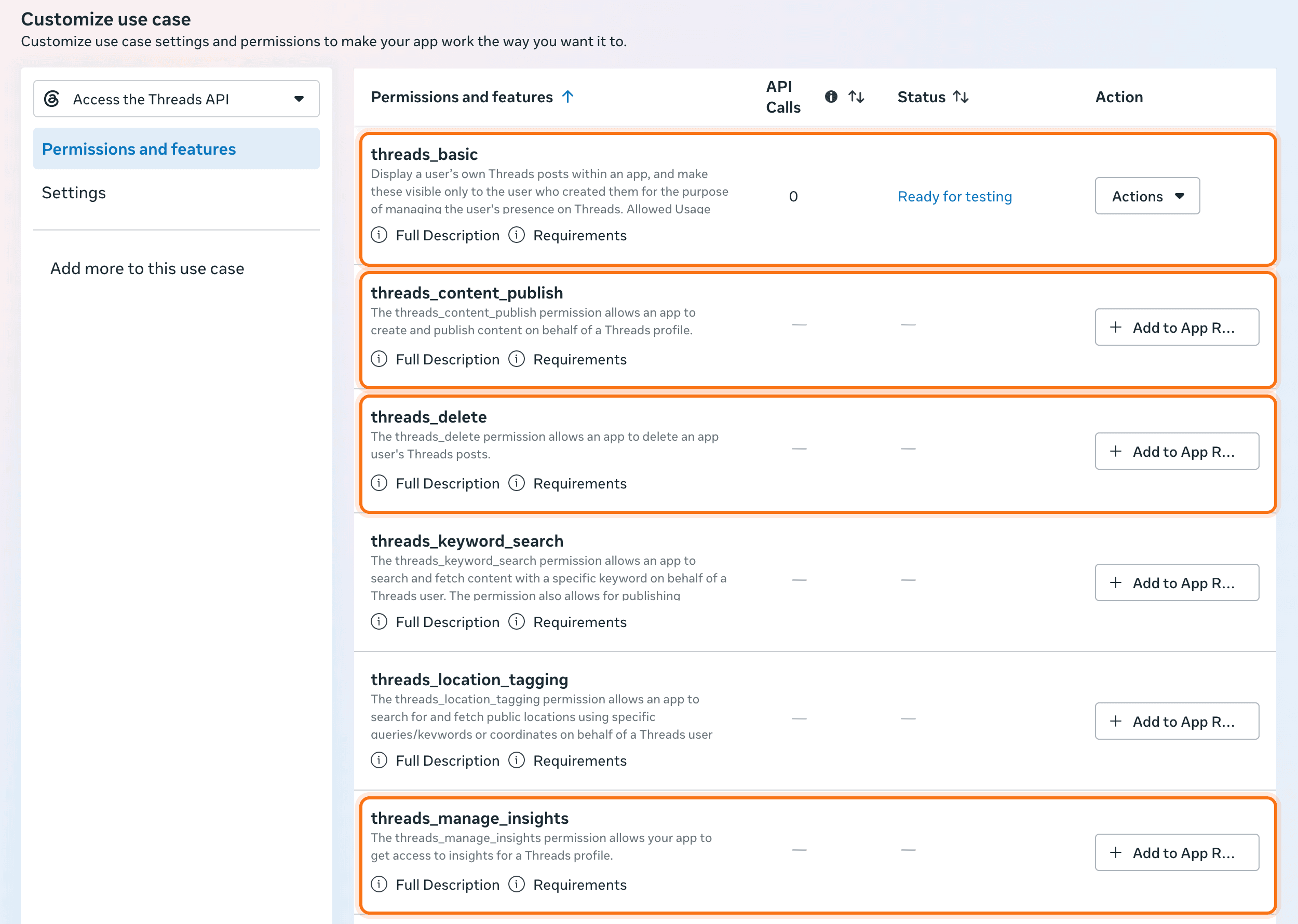
Open Use cases, click Customize on the Threads use case, and open Permissions and features. Bulkit uses these four:
threads_basicthreads_content_publishthreads_manage_insightsthreads_delete
They all work for testers right away. When you're ready to open the app to everyone, click Add to App Review on each one.
Add the redirect URI
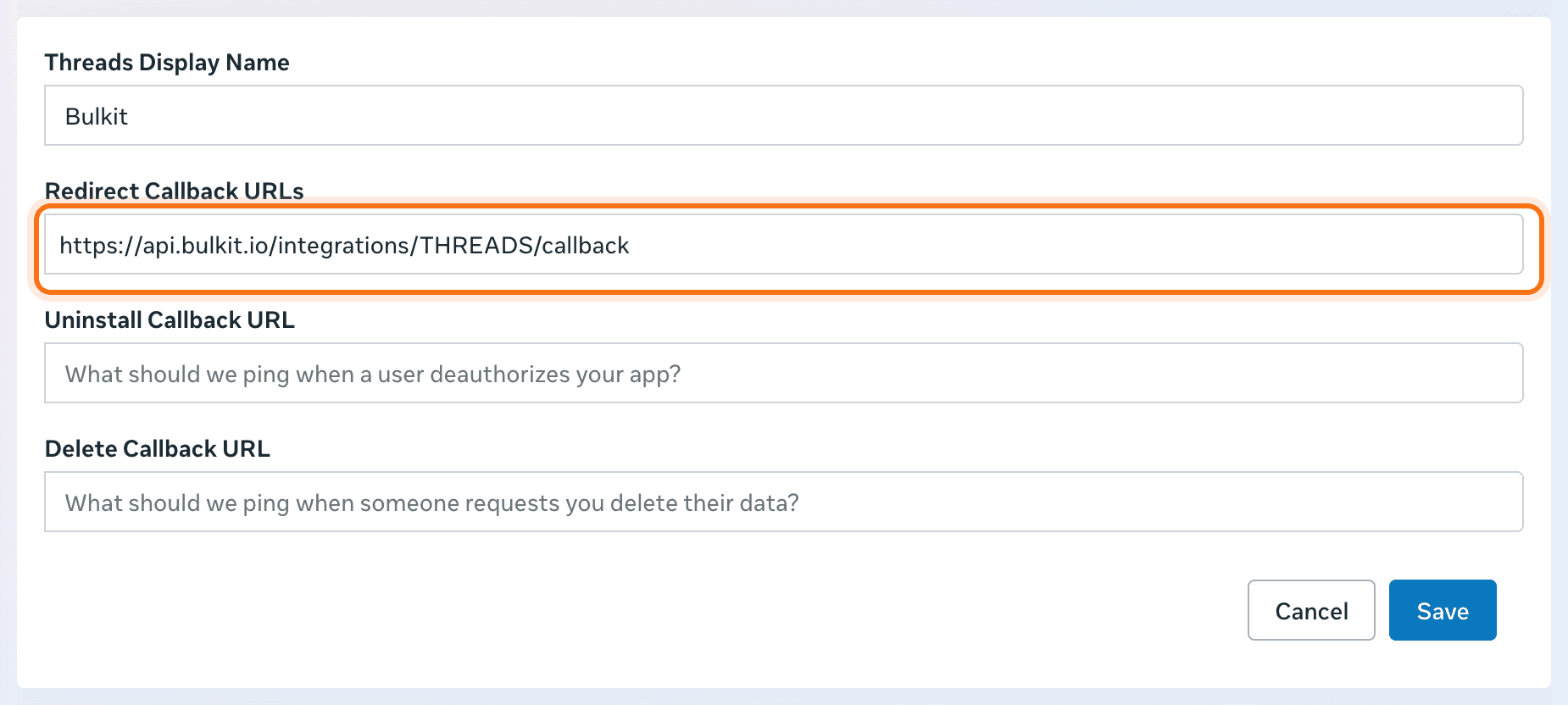
Open the use case's Settings. Paste the redirect URI from Bulkit (like
https://api.bulkit.io/integrations/THREADS/callback) into Redirect
Callback URLs and press Enter. Meta also asks for an uninstall and a delete callback URL;
you can use your website's URL for both. Click Save.
Copy the keys into Bulkit
On the same Settings page, copy the Threads app ID and Threads app secret. Paste them into Channels → Platform apps → Threads in Bulkit.
Not the app-level keys
These are not the App ID and App secret from App settings → Basic. Those belong to Facebook.

Add yourself as a tester
Open App roles → Roles → Add people → Threads Tester and enter the Threads username. Accept the invite in the Threads app under Settings → Account → Website permissions → Invites.
Connect the account
In Bulkit, open Channels → Accounts → Connect account → Threads.
Before review
Until Meta approves the app, only accounts added as Threads Testers can connect. Submit App Review for the four permissions above, then switch the app to Live.