
LinkedIn app
Create a LinkedIn app so Bulkit can post to personal LinkedIn profiles.
This app is for personal profiles. To post as a company page, you need a second, separate app: see LinkedIn Page app.
You need a LinkedIn account and a LinkedIn company page (LinkedIn asks for one when you create any app; it can be your own small page).
Create the app
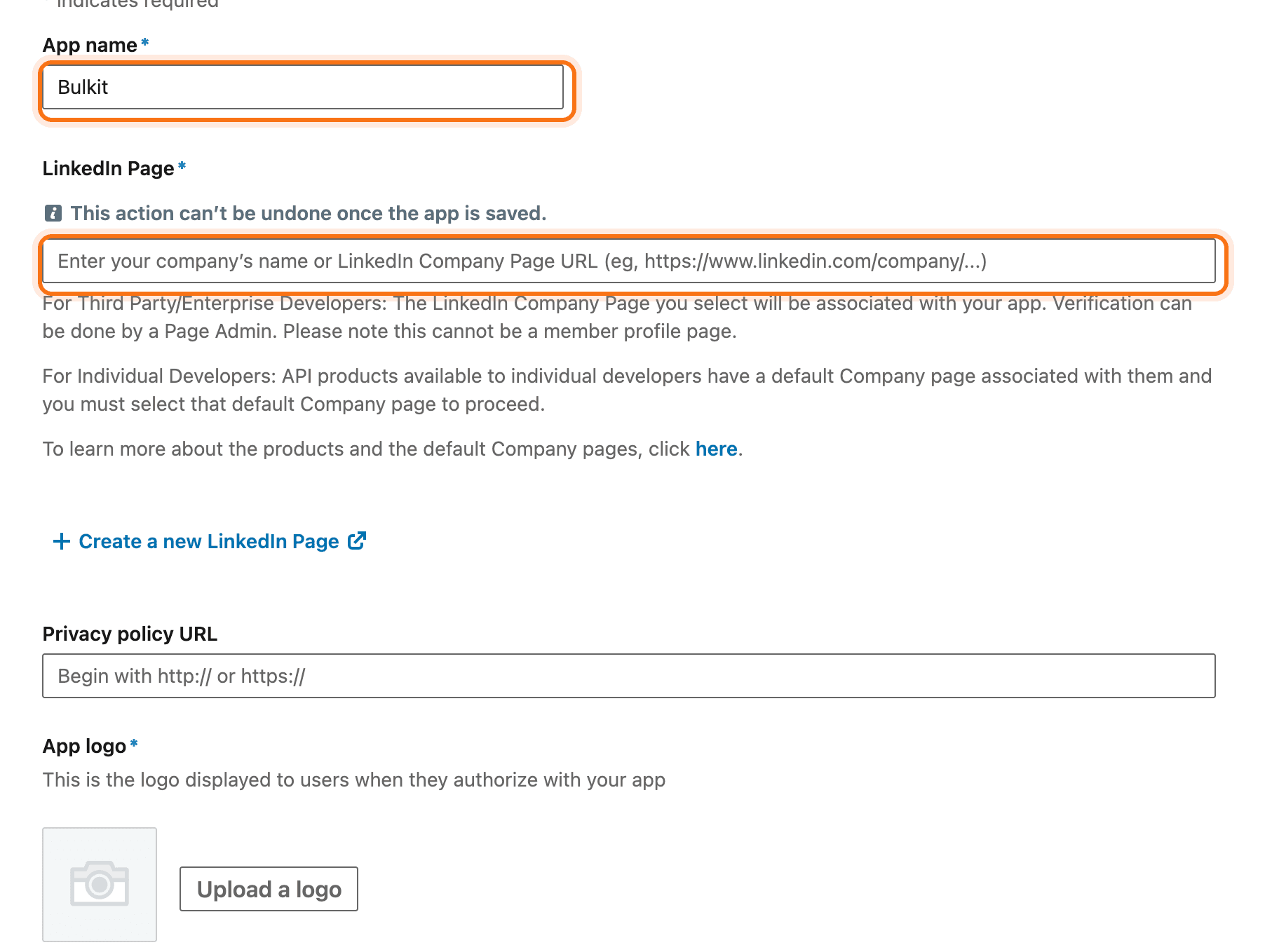
Go to linkedin.com/developers/apps and click Create app. Fill in the name, your company page and a logo, then accept the terms.
Add both products
Open the Products tab and click Request access on:
- Share on LinkedIn: lets Bulkit post.
- Sign In with LinkedIn using OpenID Connect: lets Bulkit see who connected.
Both are approved right away.
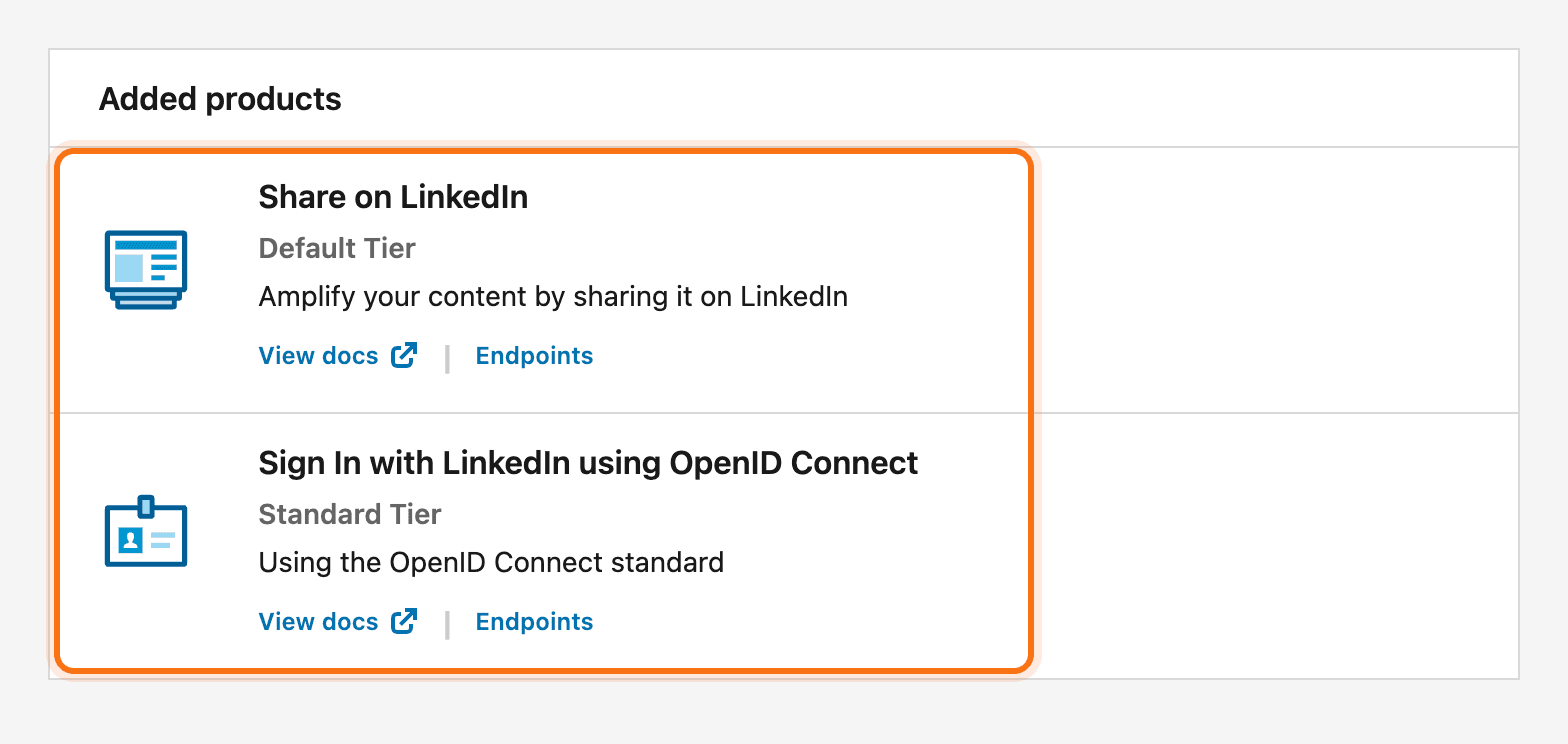
You need both. If either one is missing, LinkedIn refuses the connection with a scope error.
Add the redirect URI
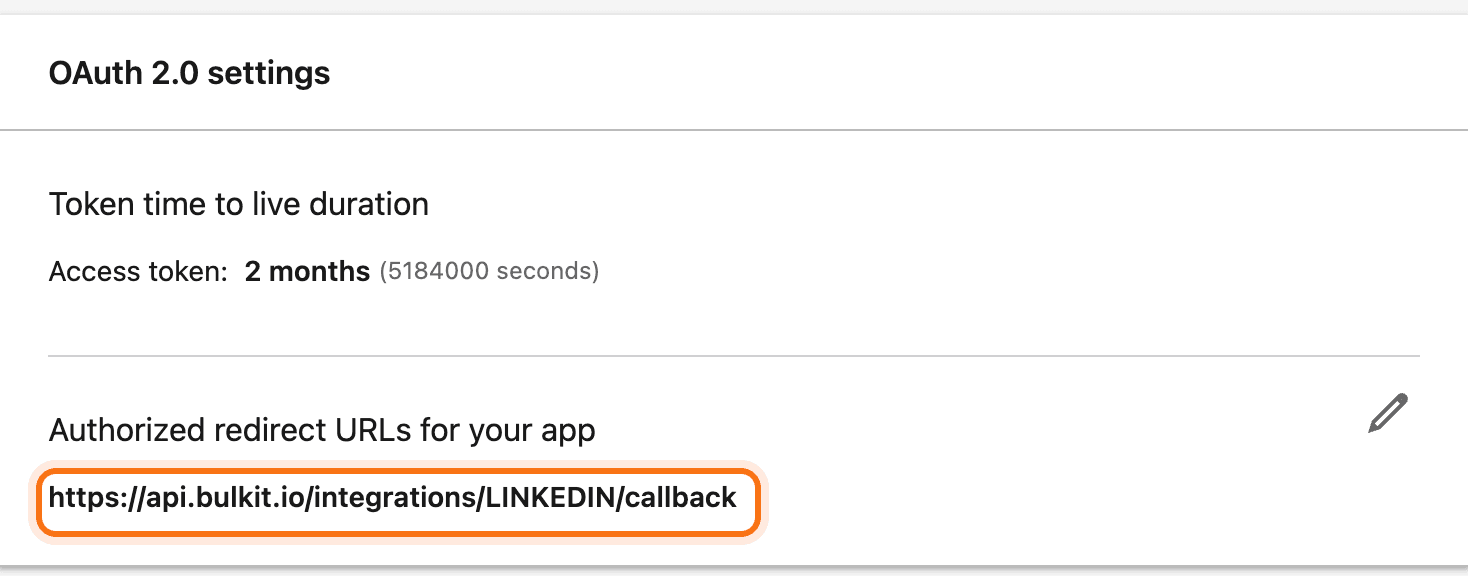
Open the Auth tab. Under OAuth 2.0 settings → Authorized redirect URLs
for your app, click the pencil, add the redirect URI from Bulkit (like
https://api.bulkit.io/integrations/LINKEDIN/callback) and click Update.
Copy the keys into Bulkit
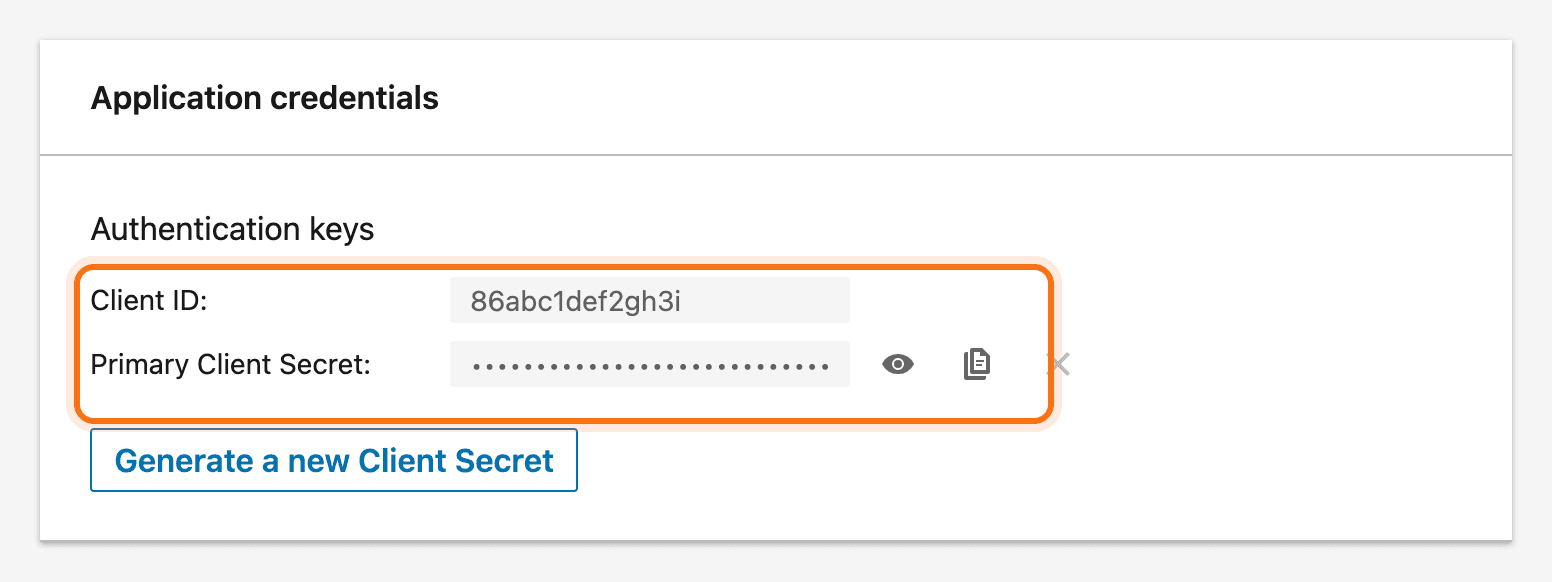
On the same Auth tab, copy the Client ID and the Primary Client Secret. Paste them into Channels → Platform apps → LinkedIn in Bulkit and save.
Connect an account
In Bulkit, open Channels → Accounts → Connect account → LinkedIn.
LinkedIn connects whoever is logged in to linkedin.com in your browser. To connect a different person, log out of LinkedIn first (or use a private window).
Good to know
- No review is needed. Any LinkedIn member can connect.
- LinkedIn gives self-serve apps a login that lasts about 60 days and can't be renewed in the background. When it runs out, the account shows Needs reconnect in Bulkit. Reconnect it to keep posting.