YouTube app
Create a Google Cloud project and OAuth client so Bulkit can upload to your YouTube channels.
You need a Google account and about 15 minutes. Read How platform apps work first if this is your first app.
Create a Google Cloud project
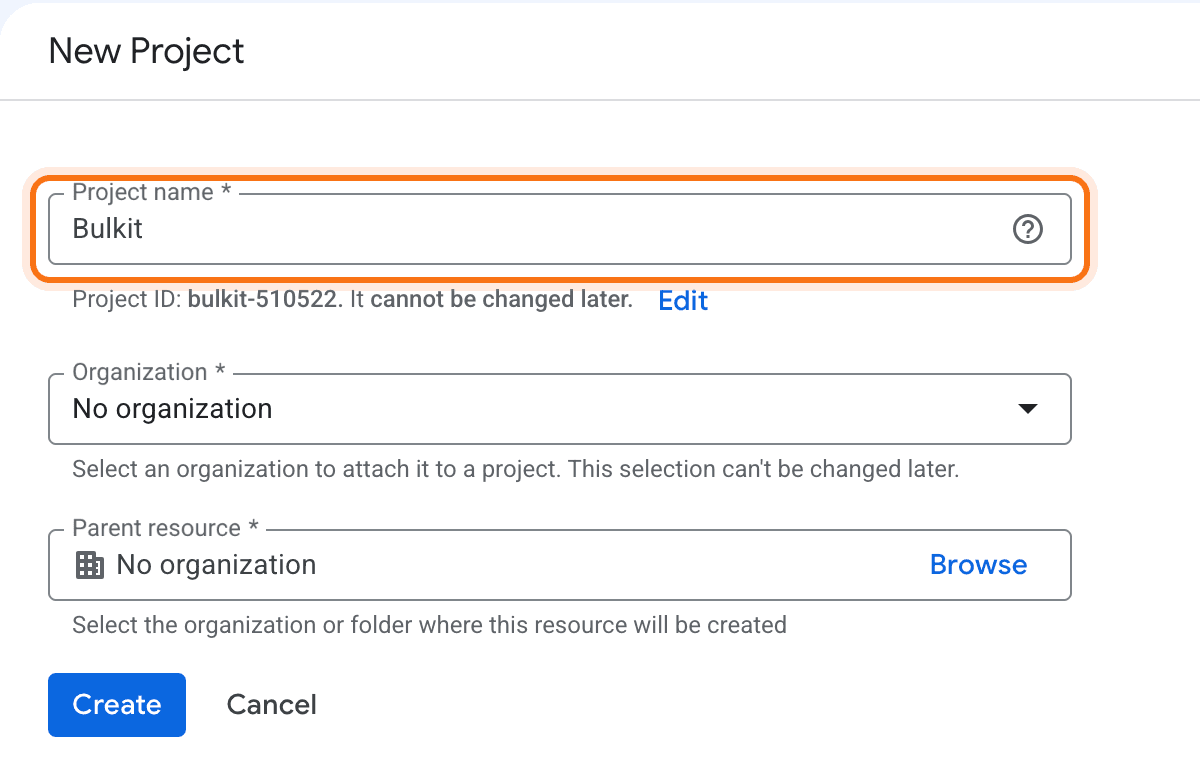
Go to console.cloud.google.com, open the project picker at the top and click New project. Any name works.
Turn on the YouTube Data API
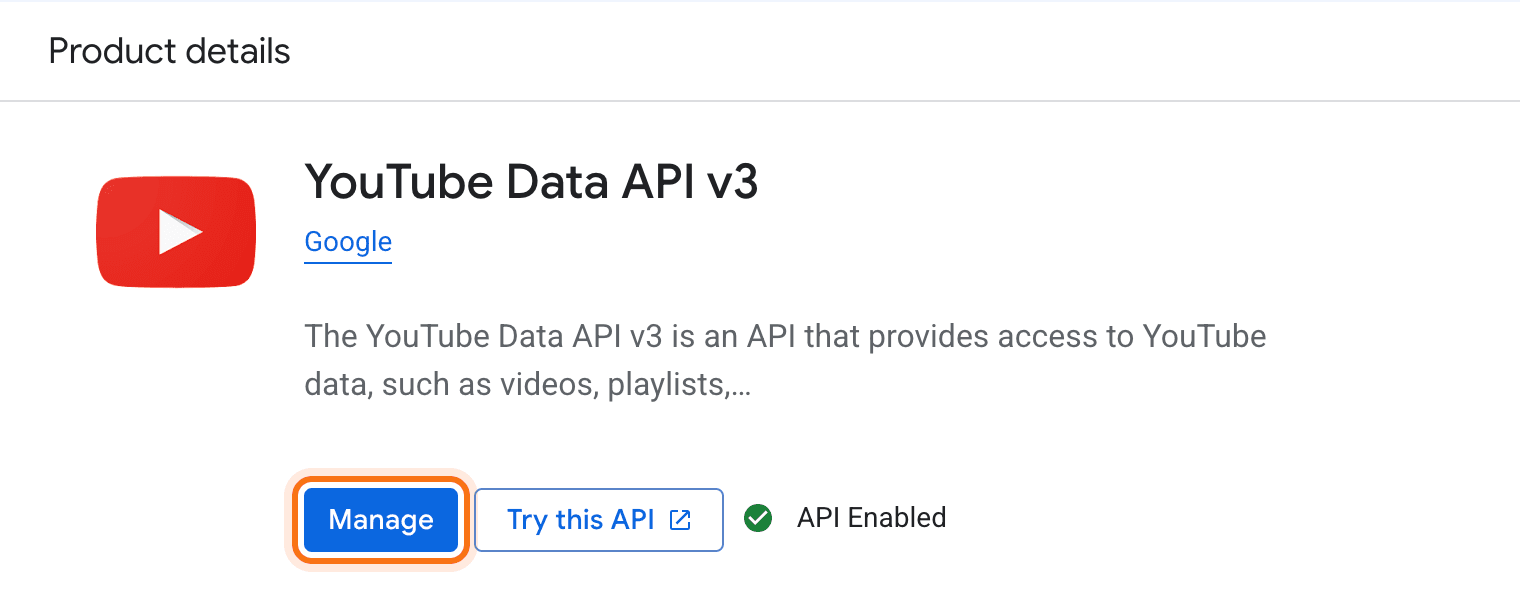
Open APIs & Services → Library, search for YouTube Data API v3 and click Enable. If the button says Manage, it's already on.
Set up the consent screen
Open Google Auth Platform. If it asks, click Get started and fill in:
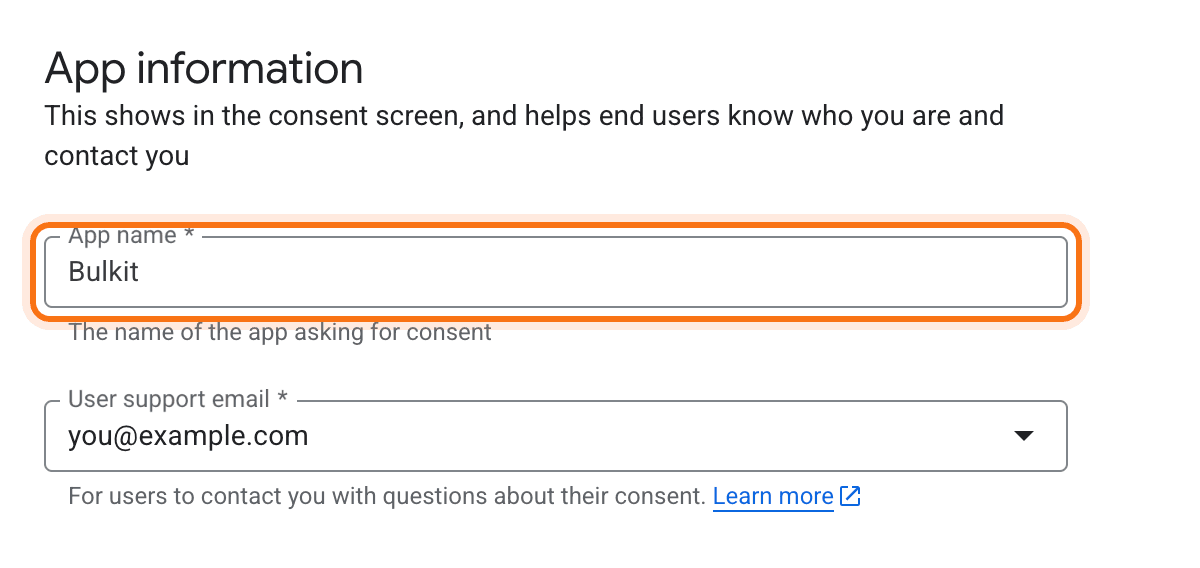
- App name: the name your users will see when they connect, like your company's name.
- User support email: your email.
- Audience: External.
- Contact information: your email.
Skip the App logo. Once a logo is uploaded, Google wants to verify the app before showing it.
Publish the app
Open Audience and click Publish app, then confirm. The status changes from Testing to In production.
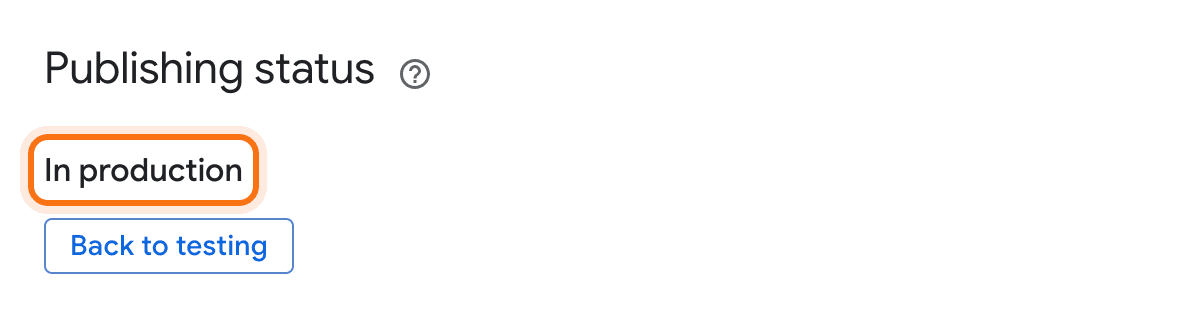
Don't skip this step
While the app is in Testing, Google blocks every account that isn't on its test-user list ("this app is not verified… only approved developers…"). It also cancels the login after 7 days, so your channel stops posting and must be reconnected. Publishing fixes both. You don't need to send the app to Google for verification.
Create the OAuth client
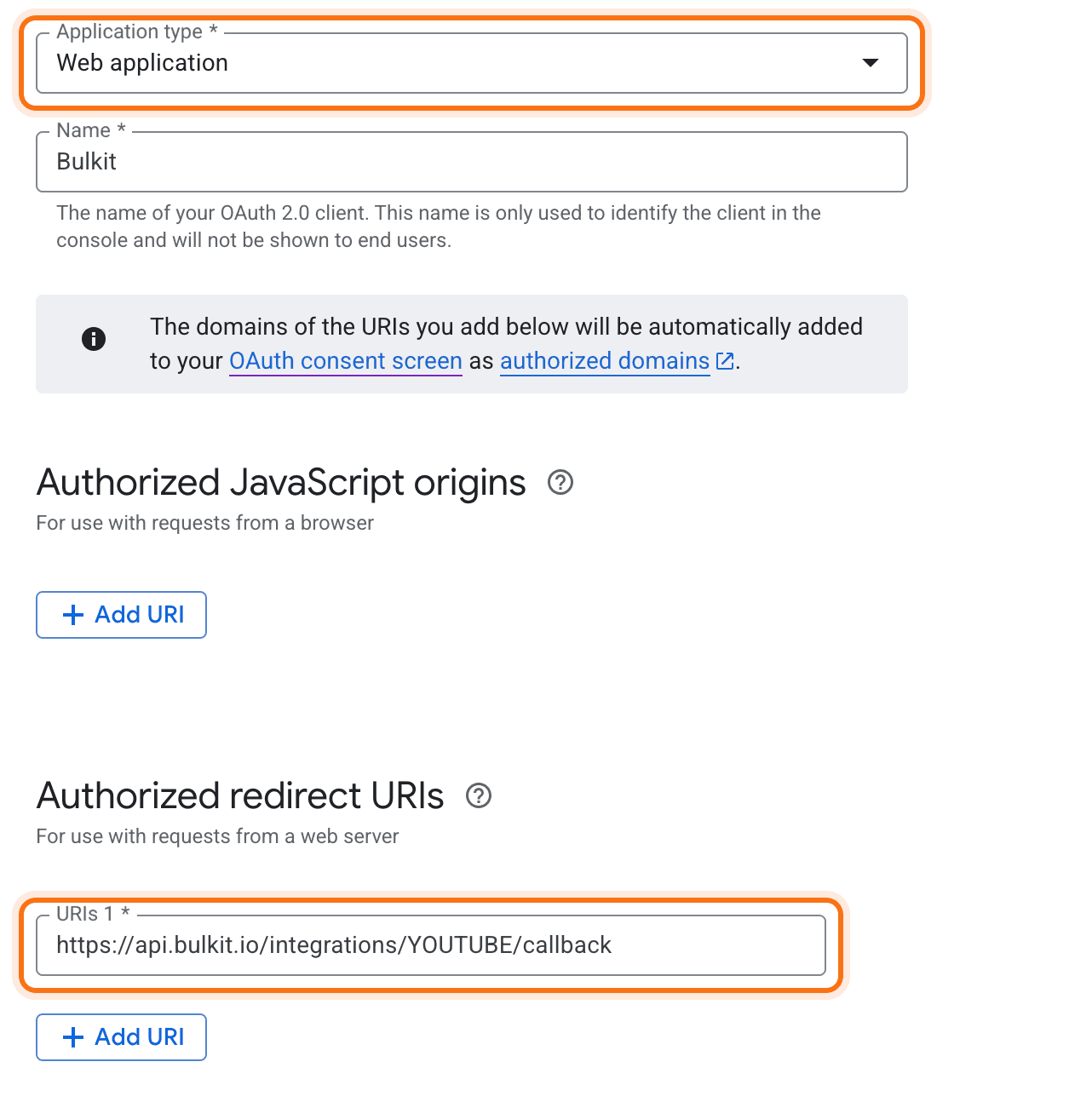
Open Clients → Create client and fill in:
- Application type: Web application.
- Authorized redirect URIs: click Add URI and paste the redirect URI
from Bulkit. It looks like
https://api.bulkit.io/integrations/YOUTUBE/callback.
Leave Authorized JavaScript origins empty. Click Create.
Copy the keys into Bulkit
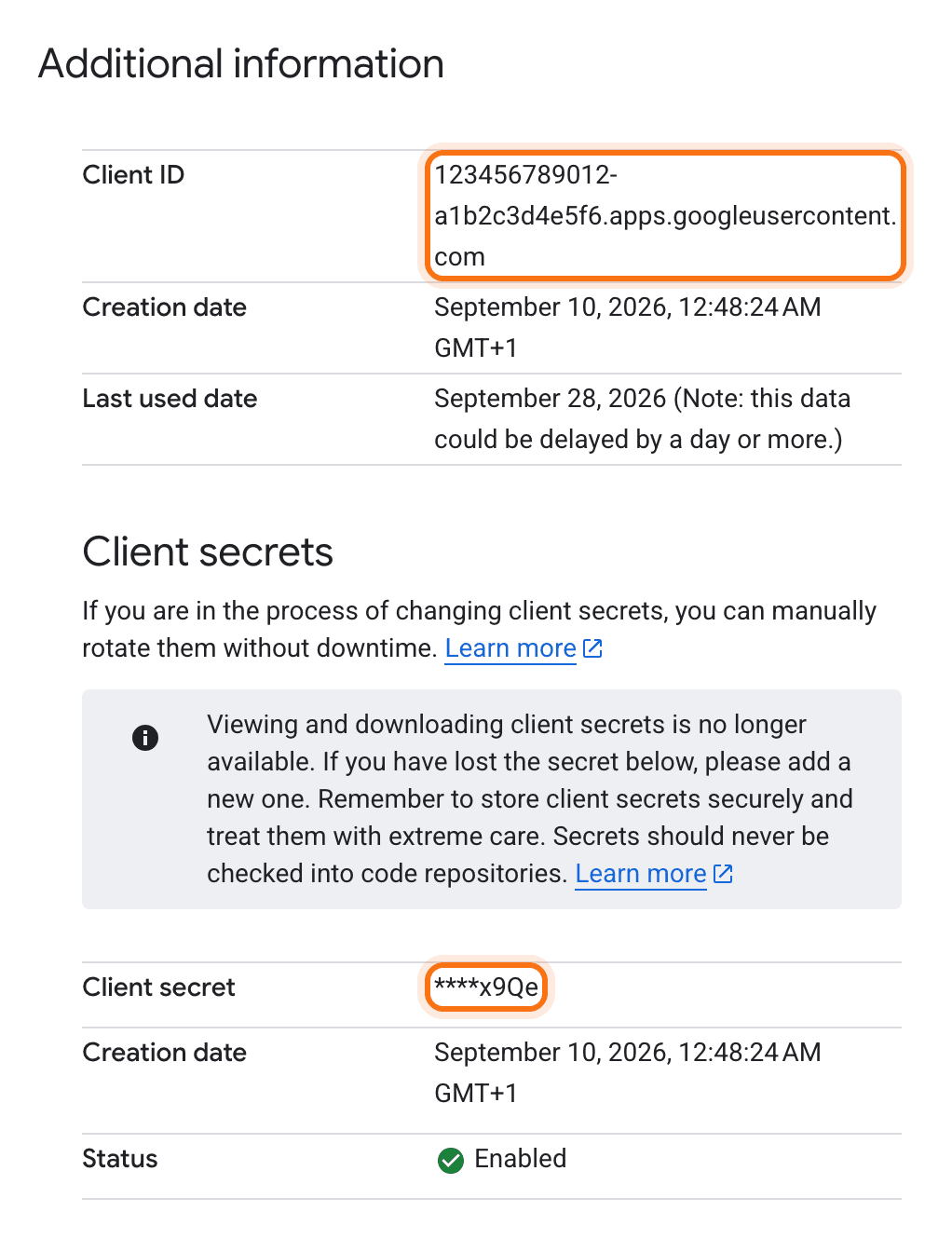
Google shows the Client ID and Client secret. Copy the secret now: Google only shows it once. If you lose it, open the client and click Add secret to make a new one.
Paste both into Channels → Platform apps → YouTube in Bulkit and save.
Connect your channel
In Bulkit, open Channels → Accounts → Connect account → YouTube. Pick the Google account that owns the channel.
Google then warns "Google hasn't verified this app". This is normal for your own app. Click Advanced, then Go to (your app name) (unsafe), then Continue. Leave every permission box ticked.
Before review
Your app works for any account right away, but Google sets two limits until you ask for more:
- Every upload is private. Until your project passes YouTube's API compliance audit, YouTube makes each video private, whatever privacy you pick. Request the audit with the YouTube API Services audit form.
- 100 accounts. An unverified app can be approved by 100 Google accounts over its whole life. That's plenty for your own channels.
- About 6 videos a day. Your project gets 10,000 units a day and one upload costs 1,600. Ask for more on the same form.
Common problems
"Access blocked: this app has not completed the Google verification process." The app is still in Testing. Go back to Publish the app.
"Remove this app from the account's third-party access… and connect again." Google only hands out a long-lived login the first time an account approves an app. Open myaccount.google.com/permissions, remove your app, then connect again.
redirect_uri_mismatch. The redirect URI in Google doesn't match Bulkit's.
Copy it again from Bulkit and paste it over the old one. Changes can take a few
minutes to apply.
The channel needs reconnecting after a week. The app was still in Testing when you connected. Publish it, then reconnect once.