
Instagram app
Set up a Meta app with Instagram Login so Bulkit can publish to Instagram professional accounts.
Bulkit uses Instagram Login, so the Instagram account doesn't need a linked Facebook Page. It must be a professional account (Business or Creator). A personal account can't connect.
One Meta app can serve Instagram, Facebook and Threads. Each one still has its own keys.
Create a Meta app
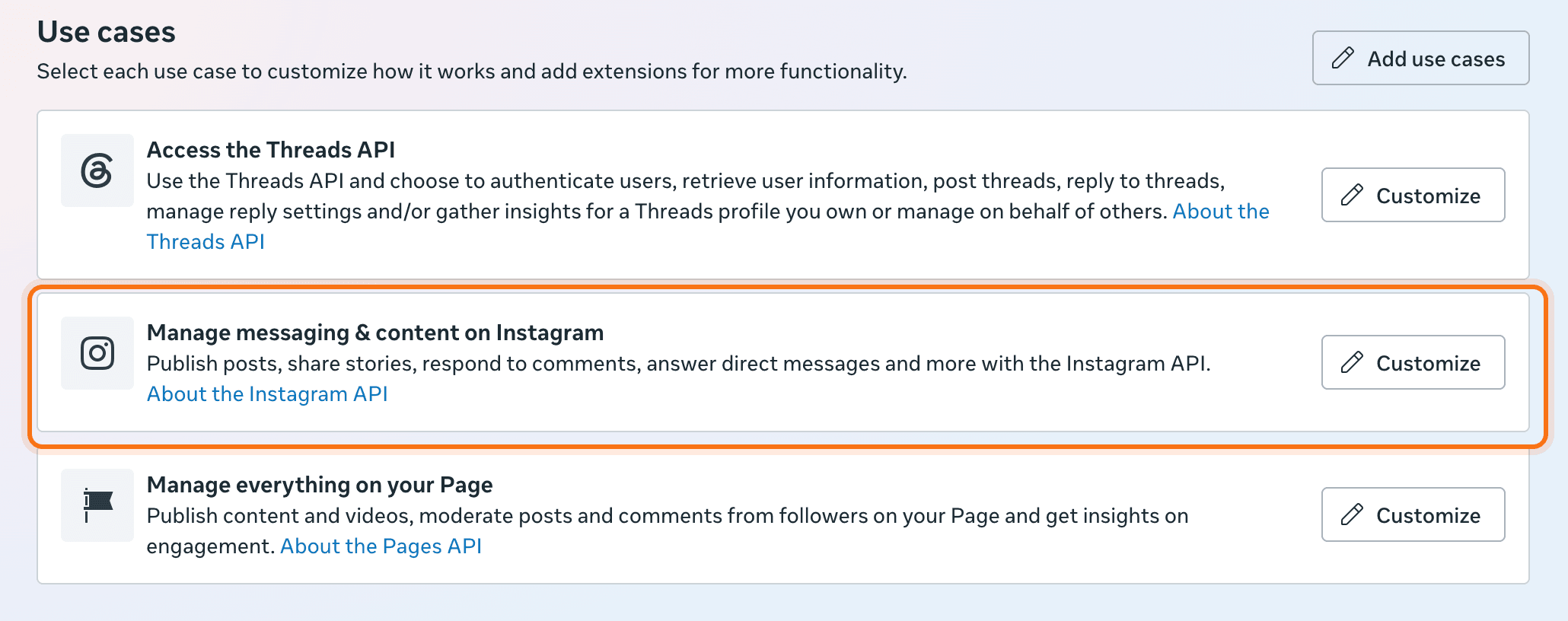
Go to developers.facebook.com/apps and click Create app. When asked for a use case, pick Manage messaging & content on Instagram. Finish the steps.
Open "API setup with Instagram login"
On the app's dashboard, open Use cases and click Customize on the Instagram use case. Open Permissions and features and make sure these are added:
instagram_business_basicinstagram_business_content_publishinstagram_business_manage_insightsinstagram_business_manage_comments
You don't need the messaging permission that Add all required permissions also adds.
Add the redirect URI
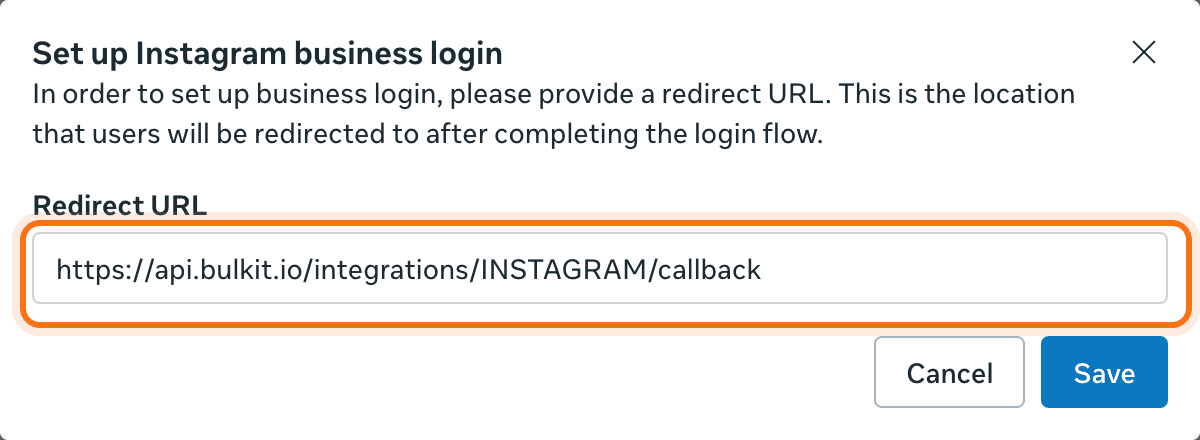
Open API setup with Instagram login. Under 4. Set up Instagram business
login, click Set up. Paste the redirect URI from Bulkit (like
https://api.bulkit.io/integrations/INSTAGRAM/callback) into Redirect URL
and click Save.
Copy the keys into Bulkit
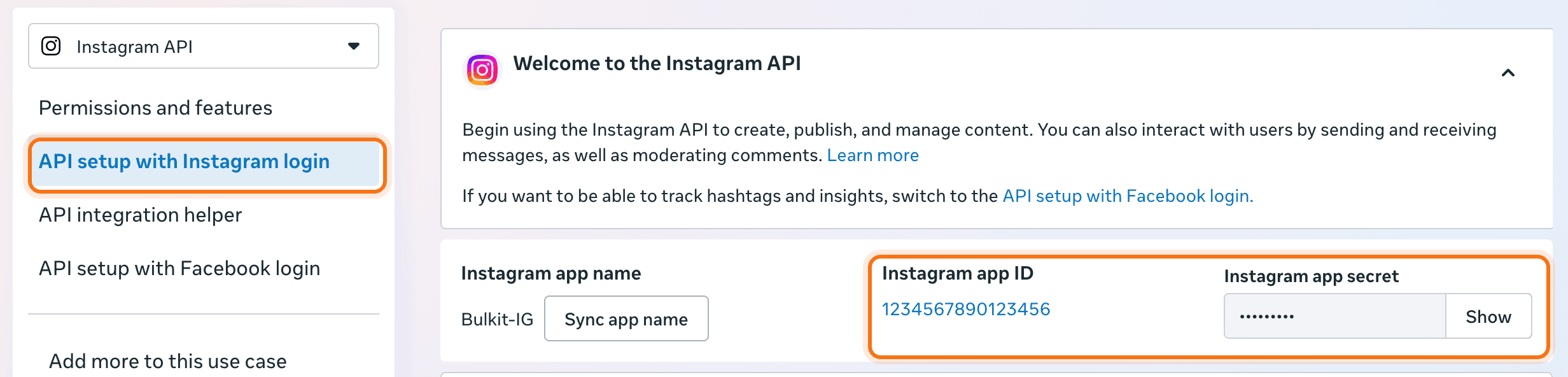
At the top of API setup with Instagram login, copy the Instagram app ID and Instagram app secret. Paste them into Channels → Platform apps → Instagram in Bulkit.
Not the Facebook App ID
The Instagram app ID is different from the App ID under App settings → Basic. Using that one makes Instagram refuse the connection.
Add yourself as a tester
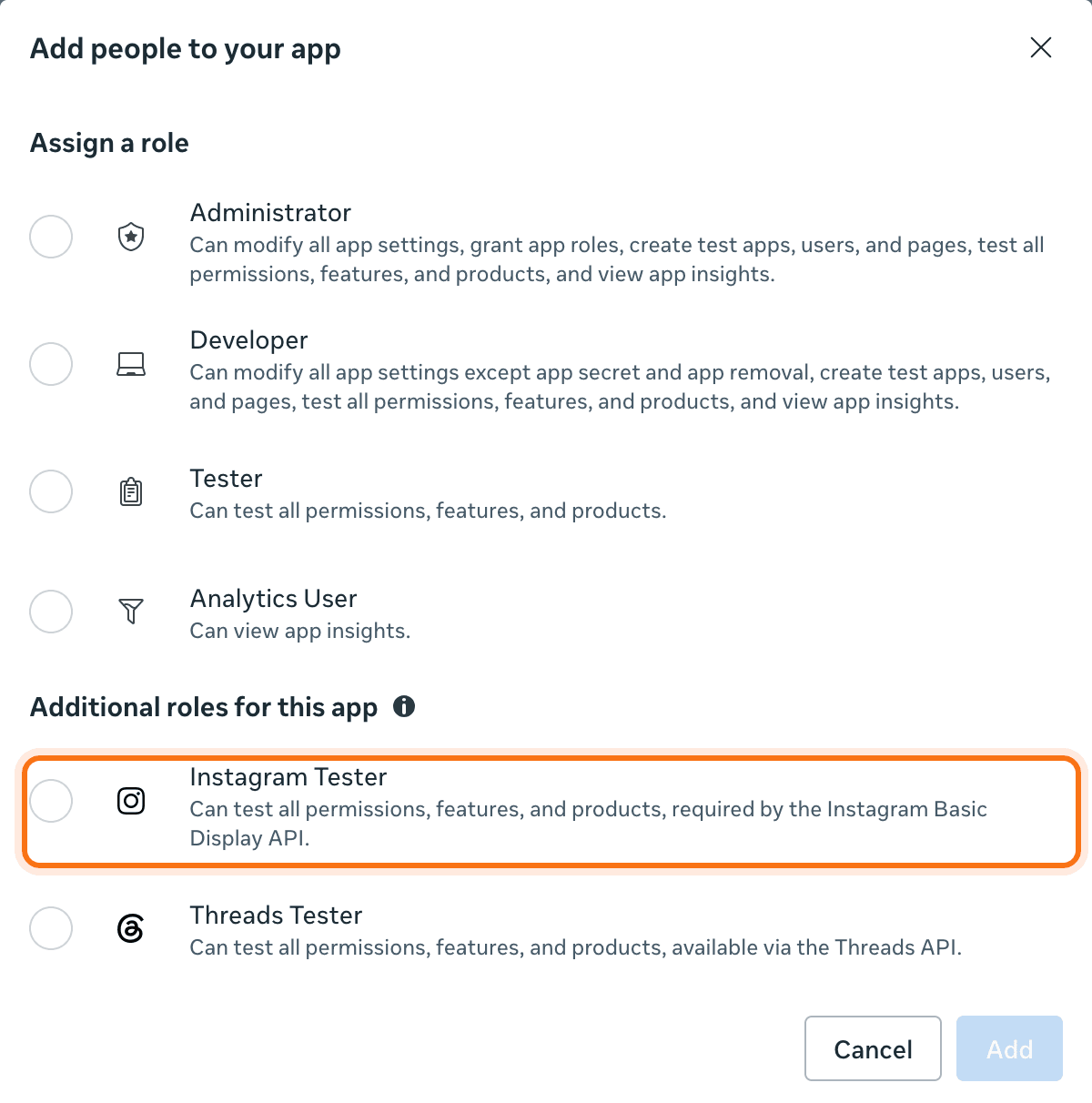
Until Meta approves your app, only accounts added to it can connect. Open App roles → Roles, click Add people → Instagram Tester and enter the Instagram username.
Then, in Instagram, accept the invite under Settings → Website permissions → Apps and websites → Tester invites.
Connect the account
In Bulkit, open Channels → Accounts → Connect account → Instagram and log in with the Instagram account.
Before review
To let any Instagram account connect, submit your app for App Review with the permissions above, then switch it to Live. Meta usually asks for a short screen recording of how you use each permission.
Good to know
- Instagram only accepts a redirect URI that starts with
https://. - The login lasts about 60 days, and Bulkit renews it on its own.