
LinkedIn Page app
Create a dedicated LinkedIn app with the Community Management API so Bulkit can post as a company page.
Posting as a company page needs LinkedIn's Community Management API. LinkedIn only grants it to an app that has no other products, so this must be a new app, not the one you use for personal profiles.
This one takes review
LinkedIn reviews every Community Management API request by hand. Nothing can be connected until it is approved, and that can take days or weeks.
Create a new app
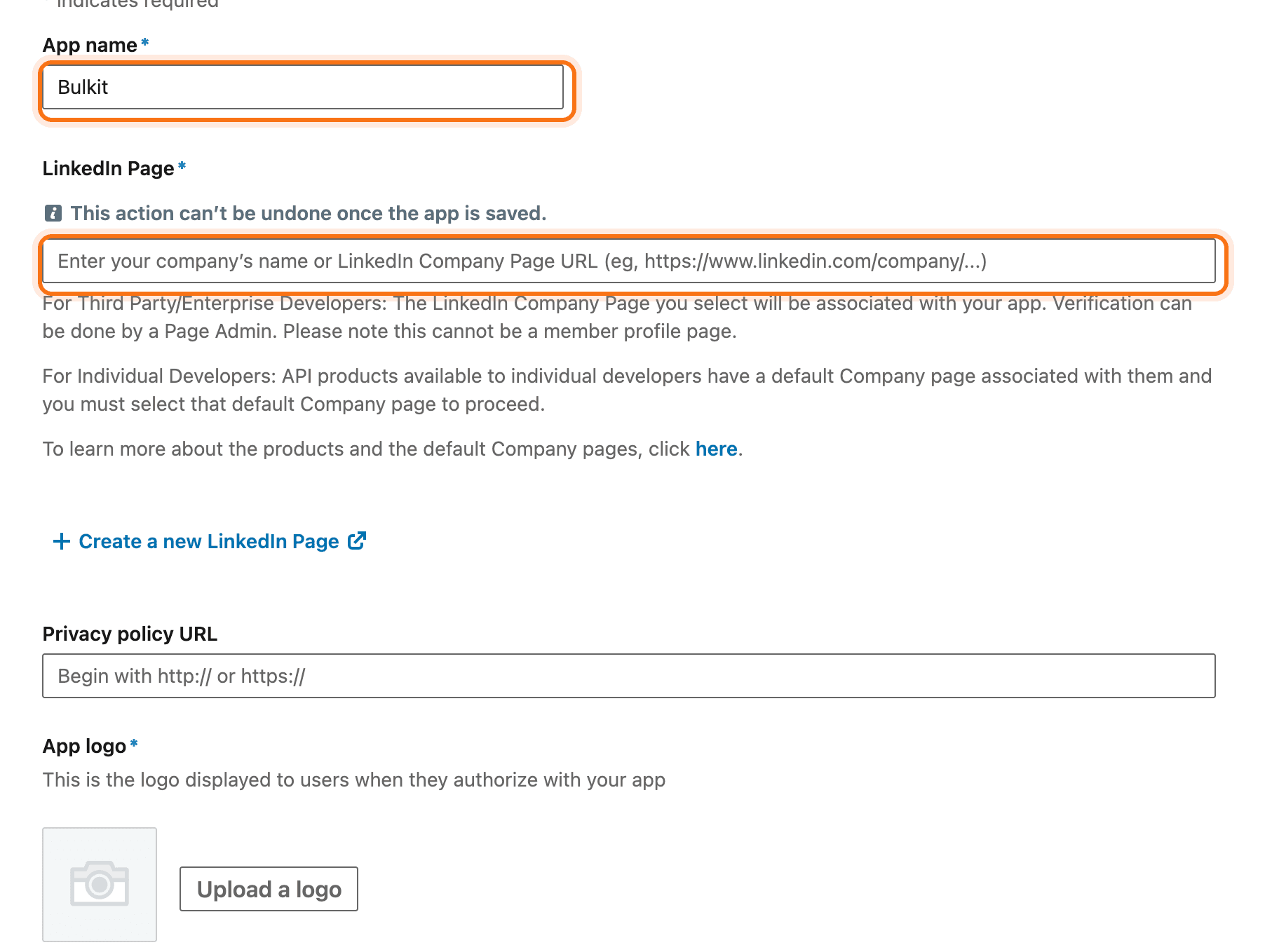
Go to linkedin.com/developers/apps and click Create app. Pick the company page you want to post to, add a logo, accept the terms.
Verify the app with your page
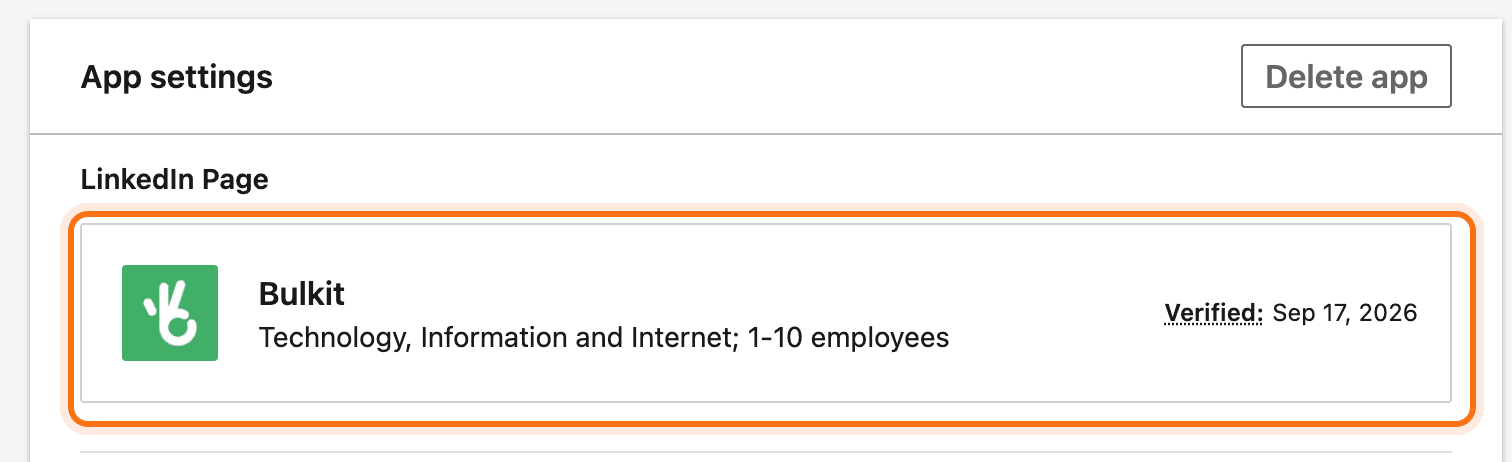
Open the Settings tab and click Verify next to your company page. LinkedIn gives you a link. Open it as an admin of that page and approve.
Request the Community Management API
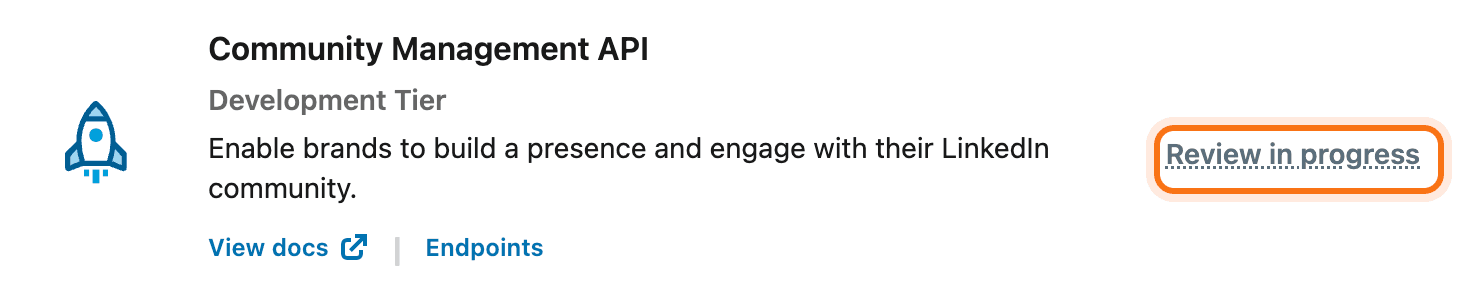
Open the Products tab and click Request access on Community Management API. Fill in LinkedIn's form about your company and how you use the API. Don't add any other product to this app.
Add the redirect URI
Once approved, open the Auth tab. Under Authorized redirect URLs for your
app, add the redirect URI from Bulkit (like
https://api.bulkit.io/integrations/LINKEDIN_PAGE/callback).
Copy the keys into Bulkit
On the Auth tab, copy the Client ID and Primary Client Secret. Paste them into Channels → Platform apps → LinkedIn Page in Bulkit.
Connect a page
In Bulkit, open Channels → Accounts → Connect account → LinkedIn Page. Log in as someone who is an admin of the page.
Good to know
Like personal profiles, the login lasts about 60 days. When the page shows Needs reconnect in Bulkit, reconnect it.